Best 3 Ways to Convert Blu-ray to MKV Free and Lossless [2026 Tested]


Summary: To rip a Blu-ray to MKV, you need a Blu-ray drive and a Blu-ray ripping software that supports MKV output. MakeMKV is for lossless MKV backup, HandBrake is for compressed MKV files, and EaseFab LosslessCopy offers both lossless and compressed MKV ripping needs. Below, you'll find not just reviews, but clear steps showing how to convert a Blu-ray to MKV in real-world scenarios—from protected movie discs to home videos.
Blu-ray provides superior audio and visual clarity, but optical discs require specialized hardware and are not easily preserved. Therefore, more and more people are looking for way to rip their movie collection for backup and easier access. When it comes to selecting the best quality format for ripping Blu-ray, MKV is always the top choice since it can encompass audio, video, pictures, and subtitle tracks in one single file while keeping the original quality of a Blu-ray. And MKV can provide better compatibility than some other formats like ISO image and BDMV folder.
In this guide, we compared 3 top-rated Blu-ray to MKV converters in 2026, testing them for conversion speed, format variety, output quality, decryption, ease of use and overall value. Also we will walk through the steps for each recommendation. Keep on reading to find the best fit for your specific needs.
Table of Contents
Quick Answer: Which Blu-ray to MKV Converter is Best For You?
To ensure a fair comparison, we tested the top 3 Blu-ray to MKV converters using the commercial Disney Blu-ray The Muppets (1h 8mins, 40.1GB) under the same hardware setup (a Windows 11 based computer with Intel Core i7-12700K processor and 32GB DDR4 RAM, and LG WP50NB40 drive for fast read/write speeds). If you don't want to read the complete reviews below, here's a quick comparison of the three tools that performed best in our benchmark tests.
Tool |
Blu-ray Decryption |
Lossless remux + re-encode |
Audio/subtitle control |
Ripping speed |
Best for |
EaseFab LosslessCopy |
All, AACS, BD+, BD-J, RC, NEW, etc. |
Both, in one app (Lossless + H.264/H.265 MKV) |
Detailed, switchable or burned-in |
6m 22s for lossless MKV, 7m 13s for H.264 encoding |
Lossless ripping and compression in one desktop workflow, including protected discs you are authorized to copy |
MakeMKV |
Basic, AACS, BD+ |
Lossless remux only |
Keeps all tracks |
6m 48s |
Free lossless MKV archive |
HandBrake |
None |
Re-encode only |
Detailed, per-track |
5h 28m 34s |
Compressing an unprotected or already-readable source with fine codec control |
⭐Key Takeaways
- Speed: Both EaseFab LosslessCopy and MakeMKV finished in under 7 minutes, with nearly identical speed. In contrast, HandBrake took over 5 hours for the same task.
- Bypass Copy Protection: EaseFab LosslessCopy stands out with superior decryption support and it's constantly updated to support the latest Blu-ray copy protections, making it suitable for a much wider range of discs. The free beta of MakeMKV
handles decryption, the registration key expires frequently, and delayed key renewals from the developer will interrupt my backup workflow. HandBrake cannot decrypt Blu-ray discs.
- Flexibility : Unlike MakeMKV, LosslessCopy also supports full re-encoding, allowing conversion to MP4 and 1000+ formats with adjustable profiles. LosslessCopy also offers useful editing features, such as trimming, cropping, and adjusting audio and video parameters, can enhance the final output.
Top 3 Blu-ray to MKV Converter Software in 2026
In this section, we will review the 3 tools and show you how to convert Blu-ray to MKV with detailed steps.
#1. EaseFab LosslessCopy - Best for Lossless & Compressed MKV Ripping of Large Blu-ray Discs
EaseFab LosslessCopy is a comprehensive Blu-ray to MKV ripping software that offers both lossless and compressed rip. It reads 2D, 3D, or UHD 4K Blu-ray discs, ISOs and folders, offers MKV passthrough profiles as well as H.264 and H.265 MKV profiles, and lets you control titles, chapters, audio tracks, and subtitles (switchable or burned in).
More than MKV, LosslessCopy also allows you to rip Blu-ray to MP4, AVI and any other video and audio formats. With leading decryption algorithm, it can handle complex protections - including AACS, BD+, and BD-J - to ensure seamless access to encrypted or region-locked content. By integrating decryption and transcoding into one streamlined workflow, it offers a high-efficiency solution for building a digital media library.
- Why We Picked It: One desktop app for lossless MKV remuxing or H.264/H.265 MKV re-encoding and compressing, with audio track and subtitle controls in the same workflow. Superior decryption support, faster performance, and hardware acceleration makes EaseFab LosslessCopy suitable for users with extensive Blu-ray and DVD collections who want a fast and cost-effective solution.
- Compatible OS: Windows 7 - Windows 11; Mac OS X 10.6 - macOS Tahoe
Pros:
- Auto-remove any disc copy protection, including the latest Blu-rays and DVDs.
- Convert Blu-ray to 500+ video/audio formats and 200+ preset devices.
- Provide lossless 1:1 backups or high-quality compressed video to save storage space.
- Allow users to rip all titles and chapters or select specific audio tracks and subtitles.
- Allow users to rip all titles and chapters or select specific audio tracks and subtitles.
- SRT files are used to extract movie subtitles.
- Feature built-in tools to crop video, adjust parameters, or add external subtitles.
Cons:
- The free (unregistered) version only support 3-minute Blu-ray ripping.
- It is currently unavailable to users of the Linux operating system.
[Tutorial] How to Rip Blu-ray to Lossless MKV File with LosslessCopy
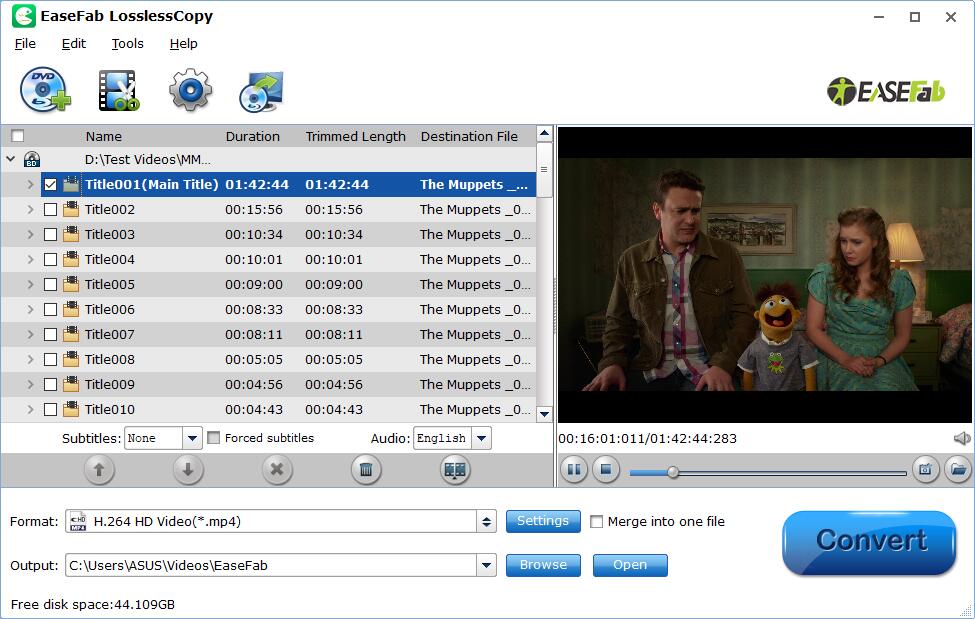
Step 1: Load the source Blu-ray movie
Insert the Blu-ray disc to the BD drive. Then launch EaseFab LosslessCopy, and then and click the Load Blu-ray button to have movies uploaded to EaseFab LosslessCopy. Here you can also import BD/DVD folders, DVD discs, ISO files and IFO files to convert.
Step 2: Select output format as MKV
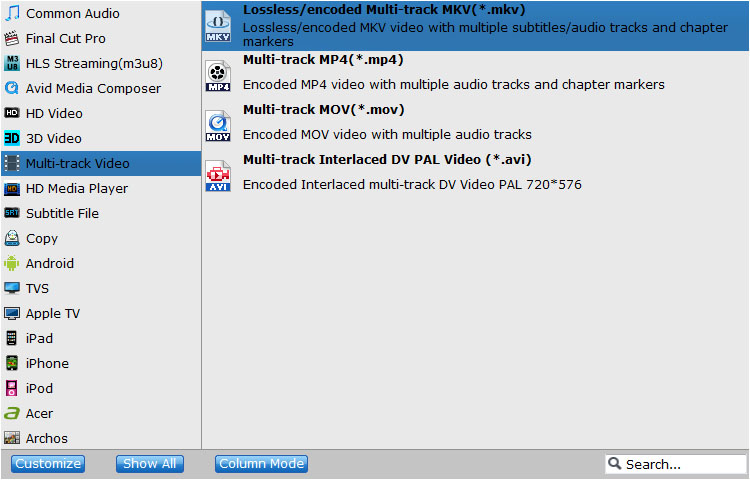
EaseFab LosslessCopy includes a series of presets in MKV format, such as Multi-track MKV, MKV H.264, 3D MKV, etc. Click "Format" bar to select one that best matches your needs.
Multi-track MKV: EaseFab LosslessCopy transfers video from Blu-ray to multi-track MKV container in two ways, lossless output and encoded output. Both the two ways enable users to preserve wanted audio tracks and subtitles streams in the source movie. For losssless Blu-ray to MKV rip, you don't need to adjust anything. If there are some tracks you don't like, you can click Settings button and go to Multi-task Settings window to uncheck and remove them under Audio tab and Subtitle tab.
MKV H.264: Select "MKV(Matroska) Video (*.mkv)" from "Common Video". This MKV profile can produce smaller files with H.264 codec.
3D MKV: Select an 3D MKV format in SBS, Anaglyph or Top-Bottom from "3D Video" category according to your needs. This allows you to rip 3D to 3D MKV videos for stereoscopic playback on 3D-capable TVs/projectors.
Step 3: Select the output and start ripping Blu-ray to MKV
Click the "Browse" button to select a destination folder in the dialog box that opens, and click OK. Then click the big blue "Convert" button to initiate the Blu-ray to MKV conversion.
#2. MakeMKV - Best for Lossless Blu-ray to MKV Backup without Re-encoding Needs
If you picked the lossless path in the decision table and want a free tool, MakeMKV is the most direct route. Available on Windows, macOS, and Linux, MakeMKV can decrypt AACS and BD+ protected Blu-ray discs into MKV files without re-encoding. The output preserves all audio tracks, subtitles, chapters, and metadata, and the rip finishes quickly. File sizes stay close to the original disc because nothing is compressed. However, it lacks compression features, requiring a second tool like HandBrake if you need to convert MKV to smaller H.264 or H.265 to save space.
MakeMKV can be used free while in beta with a periodically updated beta key. The key frequently expires, and delayed developer renewals routinely pause disc reading tasks for weeks. Furthermore, users must process files through secondary transcoders like HandBrake. These continuous interruptions drive many to find a MakeMKV alternative.
- Why We Picked It: A simple and free option for lossless MKV remuxing while keeping all audio tracks, subtitles, chapters, and metadata. Highly effective at bypassing protections.
- Compatible OS: Windows XP or later & Mac OS X 10.6 and later & Linux x86 or amd64
Pros:
- It's fast and keep original output quality..
- It can decrypt Blu-rays with AACS and BD+ protections..
- It works on Windows, macOS, and Linux..
- It's free to use while the beta license is active..
Cons:
- It only exports in MKV format.
- Does not support Blu-ray menus.
- No built-in tools for trimming, or other advanced editing.
- The beta key needs to be renewed periodically to keep using the program for free.
[Tutorial] How to Convert Blu-ray to MKV with MakeMKV
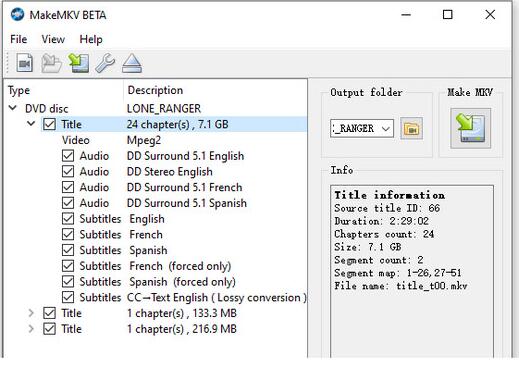
Step 1. Launch MakeMKV, insert your Blu-ray disc in your BD drive, then click the big button that looks like an optical drive. MakeMKV will read the Blu-ray disc, then display its contents.
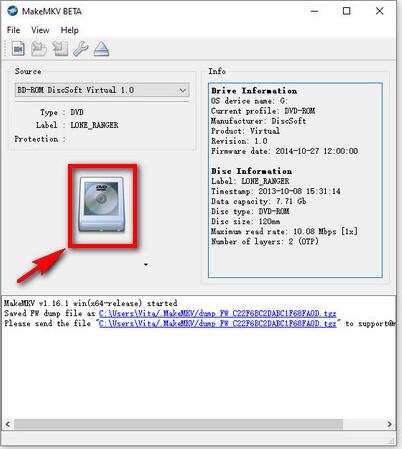
Step 2. When the scanning process finishes, it will list all chapters in the disc in the left side panel. MakeMKV selects all titles by default. But if you only want to rip the movie, it is most likely to be the title at the largest size. Select desired titles based upon your needs. If your movie is with multiple audio tracks and subtitles, double click on the movie title to extend more items. Then, you should see that there are multiple audio and subtitle tracks listed. You decide whether to rip them all or save specific tracks.
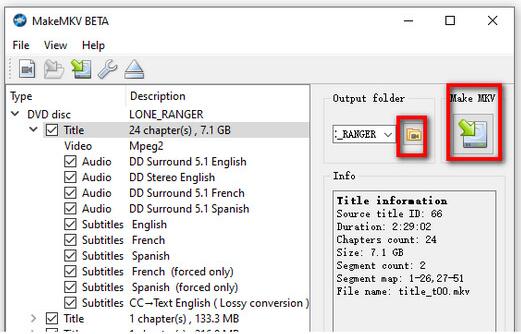
Step 3. When you are good to go, click the yellow folder icon on the right side to designate a place to save the exported file. Make sure that the destination you choose have enough free space because the movie file will be quite large. Then click Make MKV to initiate the Blu-ray to MKV ripping process.
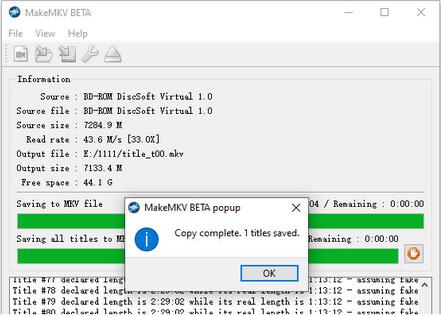
Step 4. It will take about 20~30 minutes to finish the process on the basis of the Blu-ray disc type, the tracks you select, and the movie you rip. When the whole process ends, you can see a dialog telling copy complete, xx titles saved.
#3. HandBrake - Best for Unprotected Blu-ray to MKV Compression
If you picked the compression path in the decision table, or you already have a lossless MKV from MakeMKV that you want to shrink, HandBrake is the right tool for you. It's a open-source video transcoder that can also be used to transcode and compress Blu-ray to MKV with H.264 and H.265 codec. Additionally, it provides a range of customization options for video and audio output, making it ideal for users seeking greater control over their conversion process.
However, Handbrake can't handle any encryption on commercial Blu-rays. That means HandBrake converts neither encrypted physical Blu-ray Disc nor decrypted commercial Blu-ray movies in BDMV file structure. Handbrake is not the best Blu-ray to MKV converting solution, but it still work if you have only a few of homemade/burned Blu-rays to rip.
- Why We Picked It: A free, open-source transcoder for Windows, macOS, and Linux with fine-grained H.264 and H.265 controls, MKV, MP4, and WebM output, GPU-aware presets, and batch queue support.
- Compatible OS: Windows 10 and later & macOS 10.13 and later & Linux
Pros:
- It's free and convenient.
- It offers basic video adjustment options.
- It can convert Blu-rays to MKV and several more formats.
Cons:
- It can't bypass Blu-ray copy protections.
- Some settings are confusing for beginners.
- It offers only three output formats.
- CPU-only encoding is very slow.
[Tutorial] How to Rip Blu-ray to MKV Free with Handbrake
Step 1. Download, install and open Handbrake on your PC or Mac.
Step 2. Insert the unportected Blu-ray disc to your BD drive that connected to your computer.
Step 3. Click Open Source to load the Blu-ray content. Handbrake will take some time to scan the title.
HandBrake will scan all chapters in the Blu-ray and choose a main title by default. However, you can change this by typing in a new title.
Step 4. Click the quality presets drop-down menu, ranging from General, Web, Matroska, Hardware, etc. You can preferably choose Fast480p30 for the US or Fast576p25 for Europe. You can also choose HQ and Super HQ for better image quality, which may also result in slow Blu-ray encoding speed.
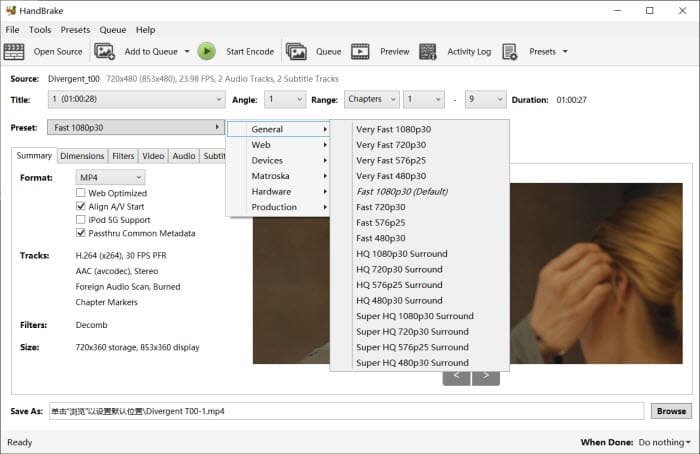
Step 5. Choose the format MKV from the drop-down list in the Summary.
Step 6. Adjust the quality settings as per your needs. You can use the Picture, Video, Audio, Subtitles, and Chapters tabs further. Preferably, you can choose H.264 for MP4 video, set RF 18-22 for your Blu-ray movies, enable 2-pass encoding for better image quality, and more.
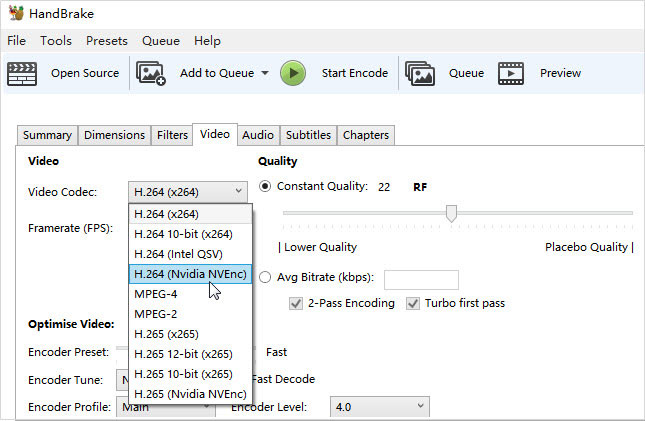
Step 7. Click the Browse button at the lower part and select a destination folder to save the resulting MKV file. You can also use an external drive and store your Blu-ray movie on your HDD or SDD, a USB drive, a NAS, or in the cloud.
Step 8. Then click Start Encode on the above toolbar to begin to free convert Blu-ray to MKV on Windows or Mac You can watch the conversion process. After the ripping, you can add the MKV movie to your library in a movie library problem like Plex.
FAQs about Ripping Blu-ray to MKV
1. Is it legal to rip a Blu-ray?
In most countries, it is illegal to rip a Blu-ray disc if it is protected by Digital Rights Management (DRM) technology. However, in some countries, it may be legal to make a backup copy of a disc for personal use.
2. Is it possible to rip Blu-rays to MKV without quality loss?
Yes. If you want to keep the original video and audio quality, choose an MKV passthrough or lossless mode in your Blu-ray ripping software. This method preserves the original streams without re-encoding. Keep in mind that the file size will be large, roughly the same as the original disc, and some players may require specific codecs to play it smoothly.
3. Is MakeMKV Still Free?
Yes, MakeMKV is still free—DVD ripping is always free, while Blu-ray ripping remains free during the beta phase using a regularly updated beta key. Although the official website went down temporarily from June 16 to June 20, 2025, it has since been restored and is fully operational.
4. How to convert Blu-ray files to MKV on Linux system?
HandBrake and MakeMKV offers Linux versions for you to convert your Blu-ray to MKV under Linux system.
5. Can I use VLC to rip Blu-ray to MKV?
The answer is both yes and no. If your Blu-Ray disc is not copyright protected, you can use VLC to rip it. However, if the Blu-Ray disc is copyrighted (which is the case for most discs), VLC may not be able to decrypt it.
6. Can I rip a Blu-ray with a DVD drive?
No, you need a Blu-ray drive to rip a Blu-ray disc. A regular DVD drive does not have the capacity to read the higher-density data on a Blu-ray disc.
Conclusion
The best free Blu-ray to MKV converters goes to the open source software undoubtedly. However, they are not competent to either convert copy-protected Blu-rays or convert files in a fast manner, or export a super large MKV file. Taking the most concerning factors into account, the running system, ease of use, supported Blu-rays, the conversion speed, and the price, EaseFab LosslessCopy is actually the best option for you to convert Blu-rays to MKV and any other formats without any fuss. And don't forget it can do far more than this. Download and unlock more features in EaseFab LosslessCopy now!


 Sales Team: