2 Best 4K Blu-ray Rippers for Fast 4K UHD Disc Ripping [Tested]


Summary: Want to back up your 4K Blu-ray collection or watch movies without a disc? Here we share you with two reliable 4K UHD Blu-ray Rippers that can help you decrypt, rip and convert your 4K Blu-rays easily and quickly on Windows 10/11 and macOS. Preserve your discs and enjoying them on PC, Mac, or mobile devices.
4K Blu-ray (aka Ultra HD Blu-ray) is now a firm fixture of virtually all major film releases. While the 4K contents offer superior picture and sound quality, they are also vulnerable to damage over time. Moreover, there are few ways to play a UHD Blu-ray disc even if you own a 4K Blu-ray player or 4K Blu-ray drive. Fortunately, we can create a digital copy of the movie by ripping the 4K Blu-rays. And it's a common practice among movie enthusiasts who want to turn their collection to digital format for easy access and long-term preservation.
There are many programs out there that claim to rip Blu-rays, but few can process 4K UHD discs. And that's why this article exists. In this article, we will introduce 2 verified 4K UHD Blu-ray rippers that you can try with confidence. Below, we will review the 2 top-rated software tool and provide tutorials and some tips to help you get started.
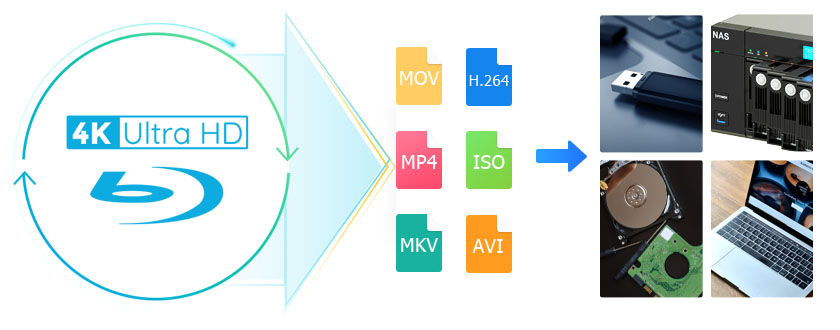
Table of Contents
Preparation for Ripping 4K Blu-rays
Before you start 4K Blu-ray ripping, there are a few things you may have to know and prepare.
- 1. An "4K friendly" Blu-ray drive is required to read the data on 4K Blu-ray disc and transfer them to your computer. Since most laptops don't come with disk drives anymore, you can buy an external one that connects via USB or install an internal one into your desktop. To rip 4K Blu-rays, you need a regular Blu-ray drive that is considered "4K friendly" instead of a 4K Blu-ray drive. This is because most 4K Blu-ray drives cannot rip 4K Blu-rays due to their improved copy protection.
- 2. Make sure your HDD or SSD has enough free space before you start. A physical 4K Ultra HD Blu-ray disc holds between 50 GB and 100 GB of data. That's a lot of space, and it's easy to fill up your storage drive after ripping only a small portion of your collection. On average, a 4K Blu-ray ripped MKV or MP4 file with good video and audio quality will take up around 10-15 GB of storage. If you choose to rip to an ISO format or a higher quality video and audio, the file size will be very larger.
- 3. A dedicated 4K Blu-ray ripping software that can decrypt, rip and digitize the 4K Blu-ray discs is necessary. There are lots of free and paid Blu-ray ripping tools on the market that claim to cope with Blu-ray discs. However, when it comes to ripping 4K Blu-ray discs, many Blu-ray rippers will end in failure since Ultra UHD 4K Blu-rays have higher and stricter encyption and normal and free Blu-ray decrypter cannot bypass all those copyright protections. EaseFab LosslessCopy and MakeMKV are the top 2 tools that can get the job done.
Top 2 4K UHD Blu-ray Ripping Software for Windows/Mac/Linux
#1. EaseFab LosslessCopy - Best All-in-One, Feature-Rich 4K UHD Blu-ray Ripper
EaseFab LosslessCopy is an all-in-one Blu-ray ripping tool for converting 4K Blu-ray discs, 2D/3D Blu-rays, DVD discs, ISO files and olfers to digital formats such as MP4, MKV, M2TS, FLAC, and more. Equipped with leading decryption algorithm, the best 4K Blu-ray ripper can easily handle tough copy protections, including AACS, BD+, BD-J, RC, and Cinavia on UHD discs and other commercial discs source. And it lets you choose titles, audio tracks, subtitles, output profiles, and compression settings before ripping.
I tested EaseFab LosslessCopy 5.9.2, updated on May 28, 2026, using the retail Saving Private Ryan 4K Blu-ray disc. With GPU hardware acceleration, LosslessCopy decrypted the disc instantly and ripped the 1-hour and 49-minutes main movie to MP4 (H.265) in about 13 minutes, producing flawless video with stable grain retention. I also tried H.264 MP4 and AV1 MP4, which encoded reliably and was one minutes faster. What made me surprised is that it could remux the 4K Blu-ray to a lossless MKV within 7 minutes.
Free download EaseFab LosslessCopy to digitize and rip your 4K UHD Blu-ray discs.
Pros:
- Remove copy protection from recent and older 4K, 2D and 3D Blu-ray discs automatically.
- Convert 4K Blu-ray discs, ISO and folders to any popular digital formats.
- Rip 4K Ultra HD Blu-rays into lossless MKV file with top-tier image and audio fidelity.
- Compress UHD 4K discs with minmal quality loss for mobile playback.
- Preserves audio tracks, subtitle streams, and chapter metadata in the output file.
- GPU acceleration and multi-task support reduce conversion time significantly.
- Output settings cover codec, resolution, quality level, and audio track selection.
- Edit (4K) Blu-rays with the built-in editor, such as trimming, adjusting brightness and adding watermarks.
Cons:
- The free (unregistered) version only support 3-minute Blu-ray ripping.
- It is currently unavailable to users of the Linux operating system.
How to Rip 4K UHD Blu-ray Discs with LosslessCopy
To begin with, you need to download and install this 4K Blu-ray ripper Windows or Mac version on your computer. The guide below takes the Windows version for an example. Mac version has the same process.
Step 1. Load the source Blu-ray movie.
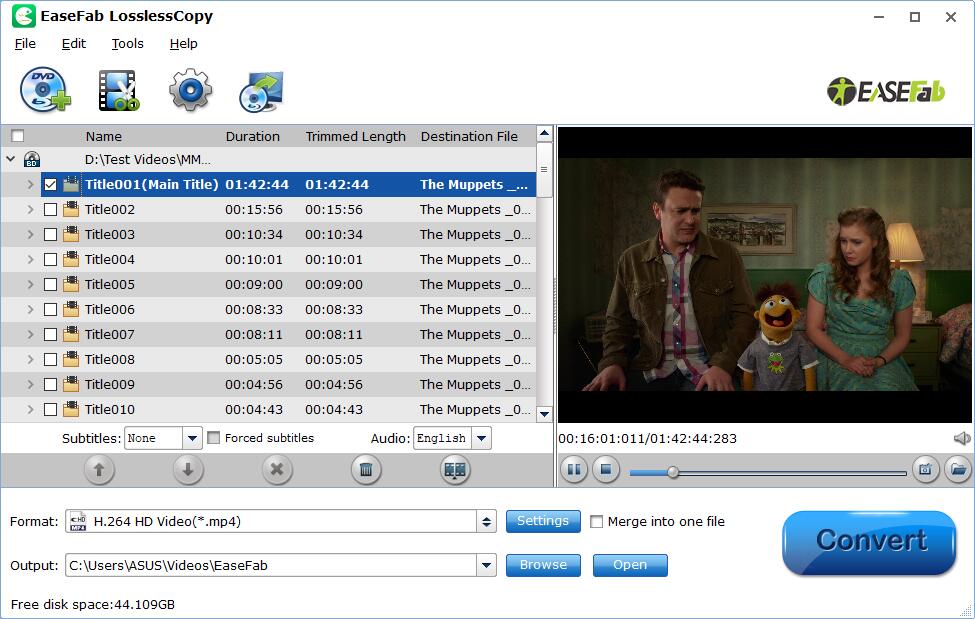
Run EaseFab LosslessCopy on your PC or Mac, insert the Ultra HD Blu-ray disc into your UHD Blu-ray drive. Click "Load Disc" button to have the 4K Blu-ray movie uploaded to the program.
This UHD 4K Blu-ray ripper will easily detect the correct title hiden in Blu-rays. At the bottom, you can select your desired subtitle and audio track.
Step 2. Choose output and set parameters.
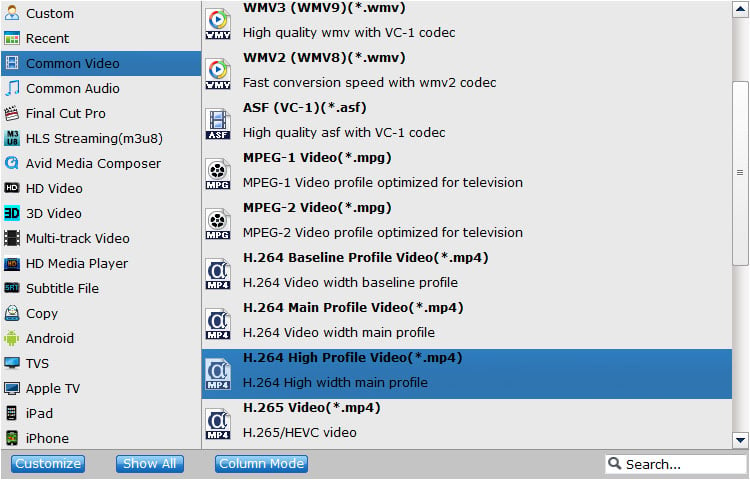
Choose output video or device file for the ripping UHD 4K Blu-ray. Users can choose to rip UHD Blu-rays to MP4, MPEG, WMV, FLV, MOV, MP3, iPhone, Apple TV, Samsung, HTC, etc.
Also, this best 4K Blu-ray ripper allows users to customize the video/audio/image settings according to own needs, and rip Ultra HD Blu-rays with original 4K quality by setting the video resolution with "keep original" in its "Profile Settings" window.
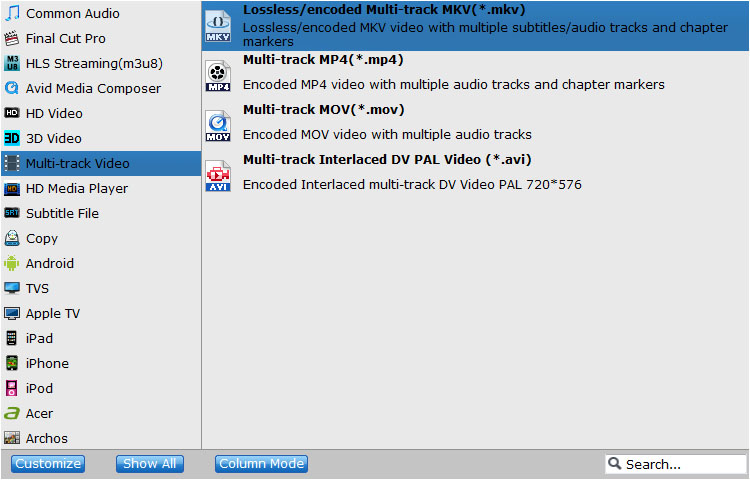
Today's 8TB and larger SSD is getting cheaper. It's not worth converting files to more efficient and space-saving formats in case of backing up your movie library. This is because re-encoding Blu-ray takes time and involves loss of quality. In this situation, you can choose "Copy the entire disc" button to make a full title copy or select "Directly Copy" from "Copy" category to backup the main title. Also you can choose "Lossless/encoded Multi-track MKV" from Multi-track Video category to backup Blu-ray to a lossless MKV file. This will keep the audio and image the same as original. And you can save UHD 4K Blu-ray library to your computer hard drive for further use.
Step 3. Start UHD Blu-ray ripping.
Click "Browse" button in the Output bar, and select a destination folder to save your rip. Now you're ready to hit the big blue "Convert" button to begin ripping or backing up your Ultra HD 4K Blu-ray discs.
Afterwards, you can sort your movies or TV shows quickly in your computer, and even transfer and watch the ripped UHD Blu-ray video on your Android, iOS gadgets. If you want to transfer your 4K Blu-ray library backups to external HDD or SSD such as Samsung Portable SSD T5, SanDisk Extreme portable SSD, connect it with a USB cable, send your UHD Blu-ray copies to external drive, and then you can stream them to your laptop, PC or TV as per your needs.
#2. MakeMKV - Best for 1:1 Lossless Backup from 4K Blu-rays
MakeMKV is a renowned and free tool for converting Blu-ray and DVD discs into MKV files without re-encoding. It can decrypt AACS and BD+ protected 4K discs and preserves the original video, audio, chapters, and metadata as a 1:1 copy. Because MakeMKV rewraps the source video and audio into an MKV container without re-encoding, file sizes stay close to the original disc (roughly 50-100 GB per 4K Blu-ray) because nothing is compressed. Though ripping Blu-rays and 4K UHD discs is technically a paid feature, but MakeMKV has stayed in a perpetual "beta" phase.
I tested MakeMKV v1.18.4, released on June 15, 2026, using the same disc. This update includes refreshed LibreDrive and AACS runtime support, which allowed it to decrypt our test disc instantly without the “no key” errors sometimes seen in older versions. The 109-minutes movie was backed up as a lossless MKV in about 7 minutes and 33 seconds, only slightly slower than EaseFab LosslessCopy.
Pros:
- With cross-platform compatibility, it is accessible on Linux, Windows, and macOS.
- Free to use while the beta license is active.
- Supports 4K discs and UHD Blu-rays (with compatible drives).
- Keeps the original video, audio tracks, and chapter markers without re-encoding.
Cons:
- Output is MKV only, so you need HandBrake or another converter if you want MP4.
- The ripped files from 4K Blu-ray are large and may require about 50GB or more per movie.
- The beta version is time-limited and may require periodic updates.
- No built-in compression, editing, or device presets.
How to Rip 4K Blu-ray with MakeMKV
Step 1. Download MakeMKV 1.18.4 from makemkv.com and install it for your operating system. Open the program and insert your UHD disc into the drive. For protected commercial discs, MakeMKV uses its built-in decryption keys. If a specific disc fails, check the MakeMKV forum for updated key files.
Step 2. Click the Blu-ray drive icon to import the disc. MakeMKV will analyze it and list all available titles. This process may take two minutes depending on the disc's encryption.
Step 3. In the list on the left, tick the titles you want to keep, along with the audio and subtitle tracks you need. At the bottom, set an output folder where the MKV files will be saved.
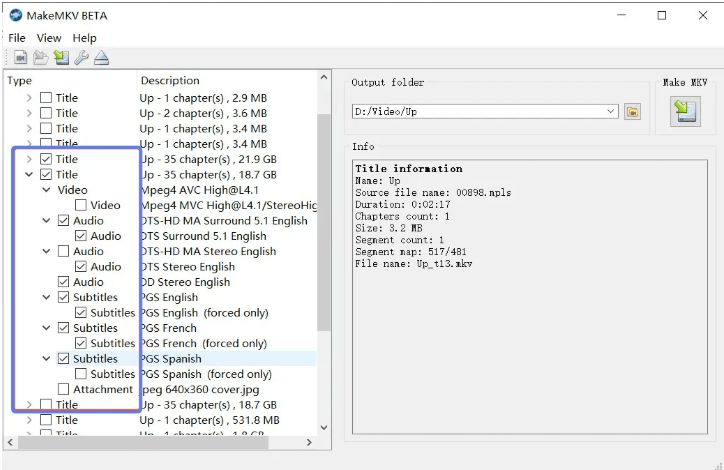
NOTE: MakeMKV does not compress files or re-encode video. The resulting MKV file will be large, typically similar in size to the original 4K Blu-ray content. So make sure you have enough space to store the files.
Step 4. Click the Make MKV button to start ripping your 4K Blu-ray. A progress bar will show how far along the process is.
FAQs about Ripping 4K Blu-rays
Is there any free 4K Blu-ray ripping tool?
Yes. There are two popular free tools that can be used to rip 4K Blu-rays - Handbrake and MakeMKV.
HandBrake is a widely-used open-source software that serves as a free 4K Blu-ray ripper. It allows users to rip and convert their favorite movies, including 4K Blu-ray discs. However, HandBrake is not primarily built to handle encrypted or protected Blu-ray discs. It lacks the ability to bypass copy protection, which means it cannot rip commercial 4K Blu-ray movies without using external decryption tools.
MakeMKV can remove most of the DRM protection of 4K Blu-ray discs. That is to say, you're able to backup and copy DVD or Blu-ray discs for evergreen playback. But as its name implied, by using MakeMKV, you can only rip 4K Blu-ray to MKV format with the preferred subtitles and channels at 1:1 ratio. To make the output compatible with common devices, you may have to convert MKV to MP4 with other conversion tools later.
Is it illegal to rip 4K UHD Blu-ray for personal use?
Ripping a 4K Blu-ray disc may potentially be illegal in some countries, as it involves making a copy of copyrighted content for personal use. It is legal to rip DVDs and Blu-ray discs for personal use only.
How do I rip 4K Blu-ray without losing quality?
EaseFab LosslessCopy and MakeMKV are the two popular tools that can convert 4K Blu-rays to versatile MKV format. It decrypts and transcodes without affecting the original content and quality, preserving all meta-information, movie subtitles and chapters.
What do you need to watch a UHD Blu-ray?
Sadly, Ultra HD discs won't play on a normal Blu-ray player, though you can play older Blu-ray discs on an Ultra HD player. In order to get a true 4K experience, remember that you'll need an Ultra HD Blu-ray player, an Ultra HD TV and some discs, obviously. There are a few important caveats, though.
First, you'll need to make sure your TV supports at least the HDMI 2.0 standard. Most TVs from the last year or so will, but very cheap models and some models from 2014 or earlier might not. Check your manual or Google the model number to find out - the even newer HDMI 2.1 standard should also be fine.
If you don't have a 4K TV, your 4K Blu-ray player will still work, but it will only display images in 1080p. Buy a regular Blu-ray instead of a 4K version and it will still play in 3840 X 2160 resolution, but it won't be a native 4K image and will be noticeably different than had you used an Ultra HD Blu-ray.
There's no denying Ultra HD Blu-ray and 4K TVs are luxuries, but they're luxuries worth having. And if you want the absolute best possible picture from your 4K TV, Ultra HD Blu-ray is where you'll find it.
Conclusion
Ripping 4K Blu-ray discs is a great way to preserve your collection and make it more accessible on different devices. For simple lossless backups of older Blu-ray and UHD 4K discs, MakeMKV is a good starting point, while HandBrake is useful for later compression. If you need to handle newer copy protections or compress files more efficiently, EaseFab LosslessCopy is my best overall choice based on my test.


 Sales Team: